

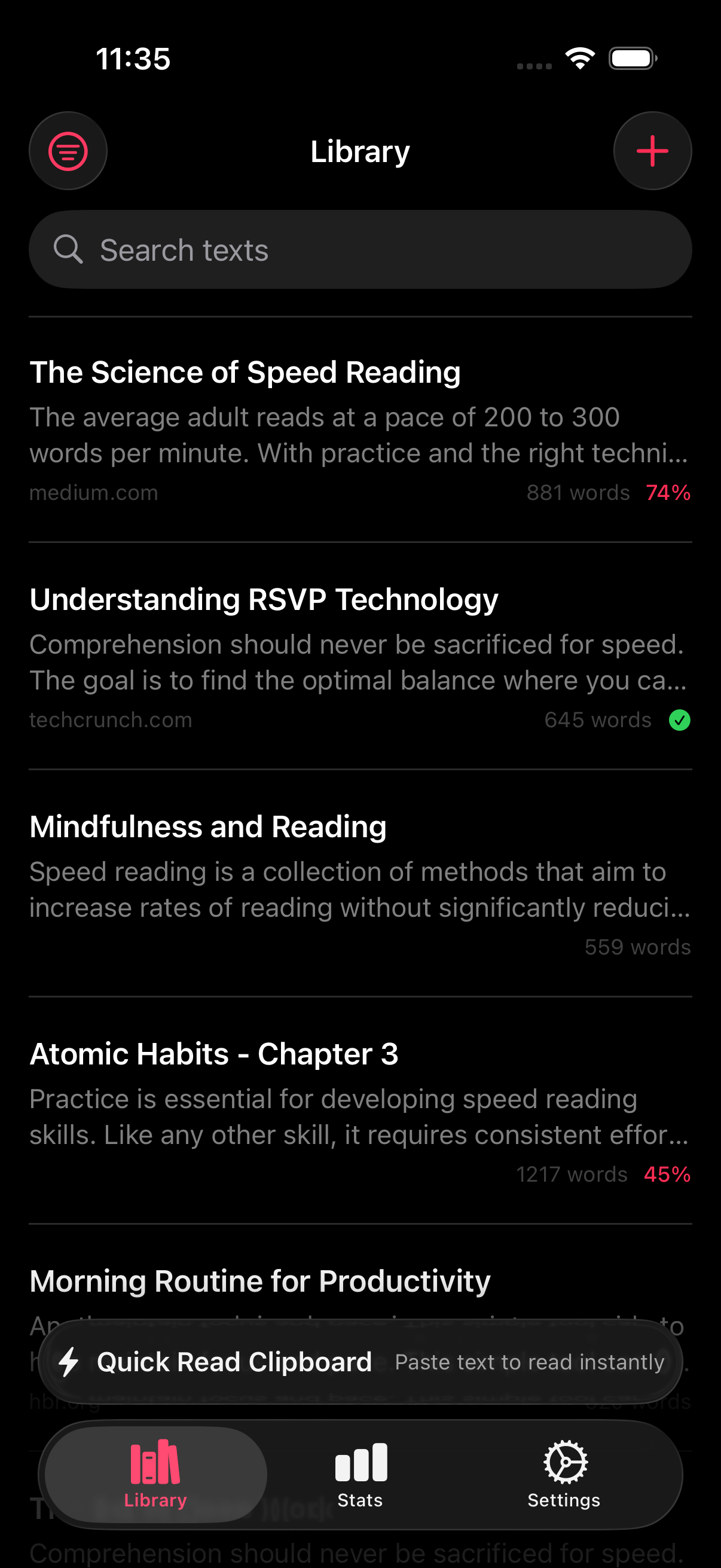
RSVP Reader shortcuts and spotlight features make the app easier to return to. Use them when you want to open a reading action faster, find saved content from search, or reduce the number of taps between a thought and a reading session. If you want the broader product view, see automation and discovery.
What Shortcuts and Spotlight do
Apple’s App Intents documentation explains how apps expose actions to Siri, Shortcuts, and system experiences. Apple’s AppShortcutsProvider documentation covers preconfigured shortcut tiles. Apple Support’s guide on Spotlight Search shows how users search apps and content across iPhone.
For RSVP Reader, that means two practical things.
One, the app can surface useful reading actions in the system. Two, saved reading items can be easier to find from search.
Use RSVP Reader shortcuts and spotlight to resume faster
If you often think “what was that thing I was reading yesterday,” start with Spotlight. Swipe down on the Home Screen, type the title or part of it, and look for RSVP Reader results. Tap the result to jump back in. If you want a steadier return path inside the app too, use bookmarks and resume.
This works best once you have saved more than a few reading items and browsing the library starts to slow you down.
Use RSVP Reader shortcuts and spotlight for repeat actions
If you repeat the same task often, shortcuts help. Common reading tasks include opening the app to continue where you left off, starting an import flow from a URL, or moving clipboard text into a reading session faster.
Here is the easy rule. If you do the same reading action enough that you can predict it, a shortcut is probably worth using.
Check Siri and Shortcuts suggestions
Open the Shortcuts app and look for RSVP Reader actions. The system may also suggest app actions based on what you do often. Apple describes these as part of the same action-discovery model that App Intents supports.
You do not need a big custom setup. Built-in shortcut surfaces are often enough.
Use Spotlight when your library grows
Spotlight becomes more helpful as your library gets larger. Search by title, topic, or a remembered phrase. If you imported work reading, course reading, or long-form articles, system search is often faster than browsing manually.
If your main problem is getting text into the app, jump to import from URL or clipboard or use the share extension.
Troubleshooting
If RSVP Reader results do not appear in Spotlight:
- Open iPhone Settings.
- Go to Siri & Search.
- Check that the app can appear in search.
- Open RSVP Reader once, then try the search again.
If shortcut actions do not show up yet:
- Open the app and complete the action normally once.
- Check the Shortcuts app again.
- Make sure iPhone is updated and Spotlight is working normally.
Sources
App intents | Apple Developer Documentation | Publication date not listed | https://developer.apple.com/documentation/AppIntents/app-intents AppShortcutsProvider | Apple Developer Documentation | Publication date not listed | https://developer.apple.com/documentation/appintents/appshortcutsprovider Use Spotlight Search on your iPhone, iPad, or iPod touch | Apple Support | March 18, 2025 | https://support.apple.com/en-us/ht201285