

Read EPUBs faster on iPhone by treating an EPUB like a reading workflow, not just a file format. An EPUB is not a flat document. It has chapters, structure, and re-entry points that matter once you are reading longer material. If you want to move through EPUB books faster on iPhone, you need three things. A way to import the file cleanly. A reading surface that fits the chapter you are in. A way to save progress so faster reading does not become lost context.
Why EPUB reading feels different from article reading
Read EPUBs faster on iPhone starts with recognizing that books behave differently from articles. Articles often work as one sitting or one saved read. EPUB books are longer. They have chapters, table-of-contents structure, and longer arcs of meaning. That changes the job.
A pace that works for a saved article may be too aggressive for a new book chapter. A single display mode that feels exciting for five minutes may get tiring over forty. That is why EPUB reading needs chapter-aware controls and good re-entry more than raw speed claims.
Apple’s Books guide on iPhone shows the standard baseline. Books handles bookmarks, themes, line guide options, and general reading features. That is useful if you mainly want a conventional ebook library. RSVP Reader becomes interesting when your goal shifts from “store books on iPhone” to “move through long-form text with more pace and more control.”
Import the EPUB cleanly first
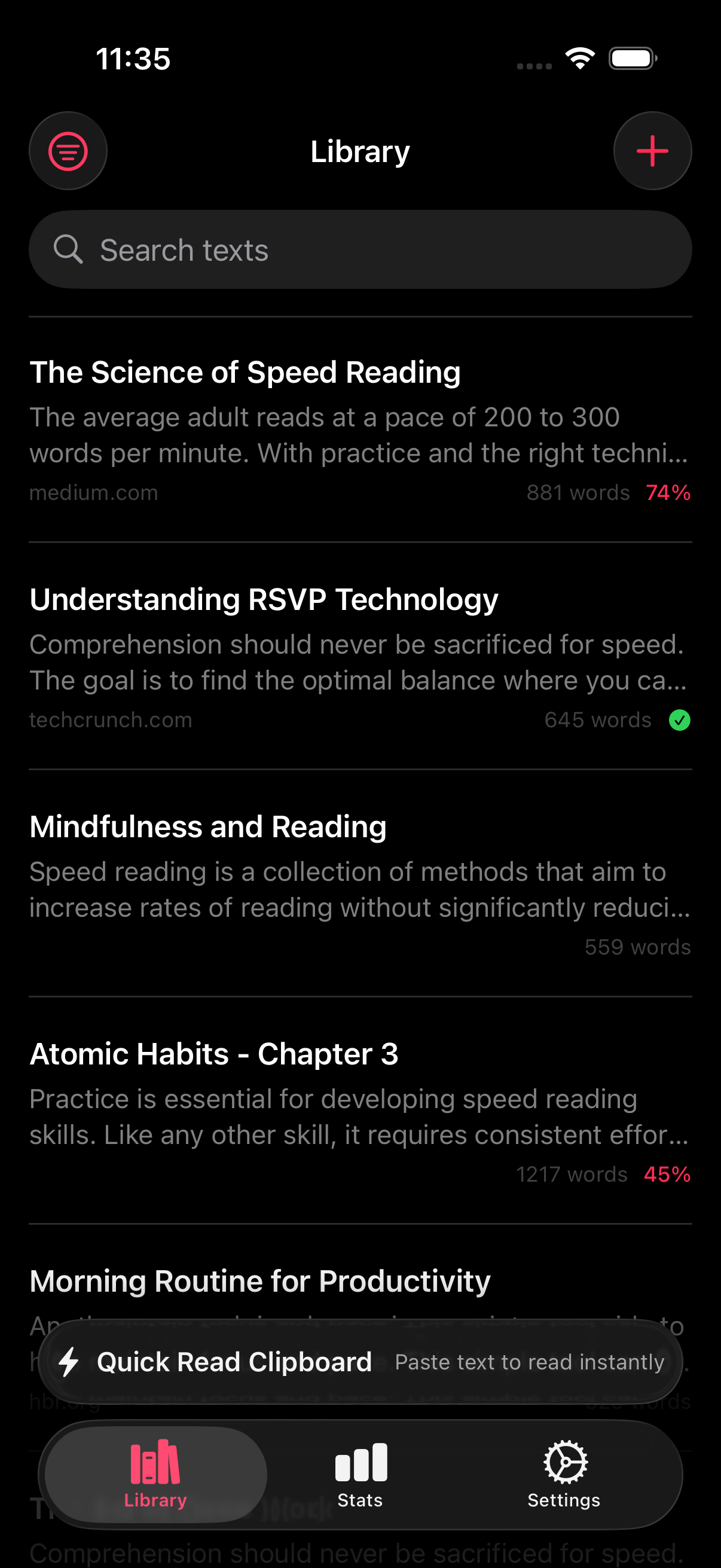
The first step is simple. Get the EPUB into the app without breaking your reading flow. If you use RSVP Reader, go through import PDF and EPUB files so the file lands in the library as something you can actually work with.
Here is why this matters. Import friction changes whether books ever get read. If the file reaches the library quickly and keeps enough structure for chapter re-entry, the reading job starts sooner. If import feels messy, books pile up just like unread articles do.
The app’s product code also shows real EPUB support through dedicated chapter models and chapter navigation. That matters because a serious EPUB workflow needs more than “open a long wall of text.”
Choose the right mode for the chapter
Read EPUBs faster on iPhone does not mean reading every chapter in the same mode. Narrative sections often support more pace than technical ones. A chapter with dense argument, footnotes, or unfamiliar language may need a slower or fuller reading view.
That is why mode choice matters so much. A paced RSVP surface can help with momentum. A fuller text mode can help when structure needs more attention. Some sections may even work better with listen mode when the goal is continuity rather than close markup.
If you are trying to read EPUBs faster on iPhone, keep this rule in mind. Use the fastest mode that still lets the chapter feel like a chapter.
Use chapters as natural speed boundaries
Chapters help you control pace better than giant documents do. A new chapter is a natural place to ask whether the last settings still fit. If the last section was easy, maybe you can raise WPM. If the new section is dense or abstract, lower pace and widen the visual support.
This is one reason EPUB reading can actually benefit from a speed-focused app. The chapter break gives you a clean point to adjust without feeling like you are interrupting yourself.
Save your place like you mean it
Long-form reading falls apart when re-entry is weak. Faster reading is only useful if you can come back the next day and know where you were. That is why bookmarks and resume belongs close to any page about how to read EPUBs faster on iPhone.
A chapter-aware library with saved progress turns faster reading into a repeatable habit. Without that, a speed-focused workflow can feel good in the moment and frustrating later.
Use pacing for first pass, not blind speed
A lot of people who want to read EPUBs faster on iPhone are not trying to skim the entire book recklessly. They are trying to move through a first pass more quickly. That is a healthier goal.
Use pace to keep momentum through familiar or lower-stakes sections. Slow down for dense sections. Bookmark parts that need a second pass. The book still gets finished faster because you stop wasting energy on the wrong parts of the text.
This approach also keeps comprehension intact better than treating every paragraph like a race.
Adjust fonts, themes, and spacing for long sessions
Long-form reading punishes poor display choices. A font that feels fine in a short article may become irritating in chapter four. A bright theme can wear you down at night. Tight spacing can make a full-text chapter feel crowded.
That is why custom reading settings matter more with EPUBs than with shorter pieces. If you want to read EPUBs faster on iPhone, do not think only about WPM. Think about what keeps you comfortable for thirty minutes at a time.
Apple’s own display and text-size guidance is a good reminder here. Readability is a session issue, not just a screenshot issue.
Compare the EPUB workflow with Apple Books honestly
Apple Books is still the default comparison because many iPhone users already have it. Books makes sense if your main need is a familiar ebook shelf. RSVP Reader makes more sense when pace, mode choice, and first-pass reading control matter more. That is why RSVP Reader vs Apple Books should sit near this page.
The honest frame is simple. Apple Books owns the default library position. RSVP Reader earns attention if you want to move through long-form text with more deliberate pacing and reading-control tools. If your library lives elsewhere, the same workflow lets you read Kindle books faster once the text is in the app.
Next steps
If your EPUB is not in the app yet, start with import PDF and EPUB files. If the reading surface still feels off, go to custom reading settings app. If you are comparing general book reading with a speed-focused workflow, read RSVP Reader vs Apple Books. Read EPUBs faster on iPhone becomes much more realistic once the app respects the structure of a book instead of treating it like one long article.
Sources
Read books in the Books app on iPhone | Apple Support | Publication date not listed | https://support.apple.com/en-lamr/guide/iphone/-iphc1af7c57/ios RSVP Reader: Speed Reading App | Apple App Store | April 1, 2026 | https://apps.apple.com/us/app/rsvp-reader-speed-reading/id6757968737 Change the font size on your iPhone, iPad, and iPod touch | Apple Support | August 22, 2023 | https://support.apple.com/en-us/102453